1. နိဒါန်း
The ABLEWE USB 3.0 KVM Switch allows two computers to share up to four USB 3.0 peripheral devices. This device eliminates the need to constantly swap cables between computers, enhancing work efficiency. It is ideal for sharing devices such as printers, scanners, mice, keyboards, webcams, and USB flash drives between two systems.
This USB 3.0 switch offers broad compatibility, operating driver-free with Windows 10/8/8.1/7/Vista/XP, Mac OS, Linux, and Chrome OS. Simply plug and play for immediate functionality.

Figure 1.1: ABLEWE USB 3.0 KVM Switch connection diagram.
2. အထုပ်အကြောင်းအရာများ
ကျေးဇူးပြု၍ ပစ္စည်းအားလုံးပါဝင်ကြောင်း သေချာစေရန် ပက်ကေ့ဂျ်ပါ၀င်သောအရာများကို စစ်ဆေးပါ။
- 1 x ABLEWE USB 3.0 KVM Switch
- 2 x USB 3.0 A-to-A Cables
- 1 x Micro USB ပါဝါကြိုး
- 1 x အသုံးပြုသူလက်စွဲ

Figure 2.1: Package contents of the ABLEWE USB 3.0 KVM Switch.
၃။ ထုတ်ကုန်အင်္ဂါရပ်များနှင့် ပုံကြမ်း
The ABLEWE USB 3.0 KVM Switch is designed for ease of use and efficient device sharing.
အဓိကအင်္ဂါရပ်များ-
- 4-Port USB 3.0 Sharing: USB 3.0 စက်လေးခုအထိ ချိတ်ဆက်ပါ။
- 2-Computer Connectivity: Seamlessly switch between two host computers.
- ခလုတ်ပြောင်းခြင်း Easy one-button toggle between connected computers.
- LED အညွှန်း- Clearly shows which computer is currently active (Green or Blue). The indicator light is designed to be non-dazzling.
- USB 3.0 Speed: Supports data transfer speeds up to 5Gbps, backward compatible with USB 2.0.
- Micro USB ပါဝါပေါက်- Provides stable power for high-power consumption devices (e.g., HDDs, SSDs, digital video cameras).
- Driver-Free: လည်ပတ်မှုစနစ်အများစုအတွက် ဆော့ဖ်ဝဲလ်တပ်ဆင်မှုမလိုအပ်ပါ။
ကုန်ပစ္စည်း ပုံကြမ်း-

ပုံ 3.1: ရှေ့ view of the ABLEWE USB 3.0 KVM Switch.

Figure 3.2: Key features of the ABLEWE USB 3.0 KVM Switch.
4. စနစ်ထည့်သွင်းရန် ညွှန်ကြားချက်များ
Follow these steps to set up your ABLEWE USB 3.0 KVM Switch:
- ကွန်ပျူတာများ ချိတ်ဆက်ပါ- Use the two provided USB 3.0 A-to-A cables to connect your two computers to the input ports labeled 'PC 1' and 'PC 2' on the KVM switch.
- USB စက်များကို ချိတ်ဆက်ပါ- Plug your USB peripheral devices (e.g., keyboard, mouse, printer, USB drive) into the four USB 3.0 output ports on the KVM switch.
- ပါဝါချိတ်ဆက်ပါ (ရွေးချယ်နိုင်သော်လည်း အကြံပြုထားသည်) If you are using high-power USB devices such as external hard drives (HDDs), solid-state drives (SSDs), or digital video cameras, connect the included Micro USB power cable to the 'DC 5V' port on the switch and to a 5V 2A USB power adapter (not included). This ensures stable performance for all connected devices.
- ပါဝါဖွင့်ပါ- Ensure both connected computers are powered on. The KVM switch is driver-free and should be recognized automatically by your operating system.
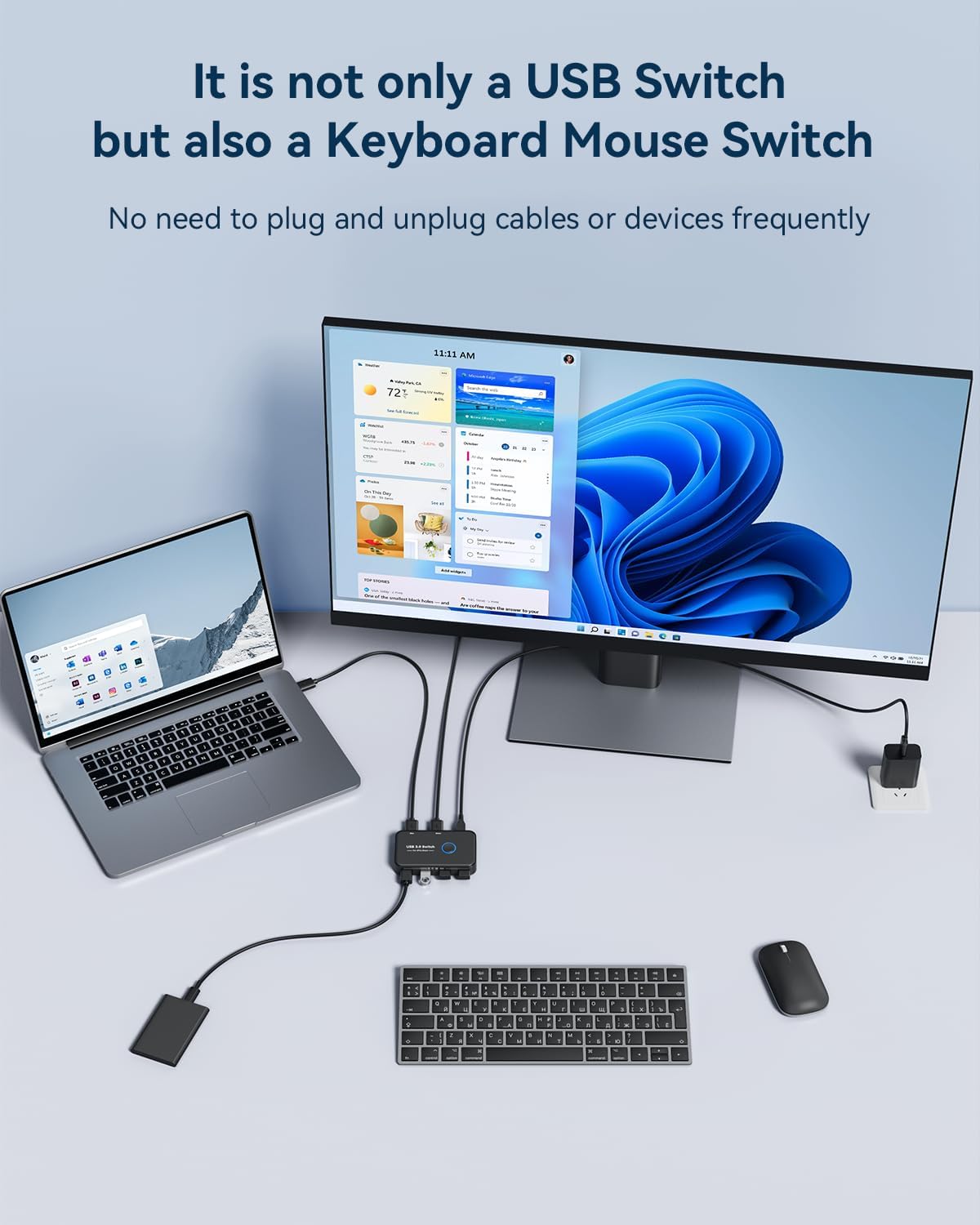
ပုံ 4.1: Example setup with a laptop and desktop sharing peripherals.

Figure 4.2: Connecting the Micro USB power cable for stable performance.
Connecting to a USB-C Laptop:
If your laptop only has USB-C ports, you will need an OTG USB-C to USB-A adapter to connect the provided USB-A to USB-A cable from the KVM switch to your laptop.

Figure 4.3: Connecting to a USB-C laptop.
5. လုပ်ငန်းဆောင်ရွက်မှုညွှန်ကြားချက်များ
Operating the ABLEWE USB 3.0 KVM Switch is straightforward:
- ကွန်ပျူတာများကို ပြောင်းခြင်း- To switch control of the shared USB devices between your two computers, simply press the large circular button on the top of the KVM switch.
- LED အညွှန်း- The LED indicator light around the button will change color (Green or Blue) to show which computer is currently active and has control of the connected USB devices.

Figure 5.1: One-button switching operation.
6. ပြုပြင်ထိန်းသိမ်းမှု
To ensure the longevity and optimal performance of your ABLEWE USB 3.0 KVM Switch, follow these maintenance guidelines:
- စက်ပစ္စည်းကို သန့်ရှင်းခြောက်သွေ့သောပတ်ဝန်းကျင်တွင်၊ ဖုန်မှုန့်နှင့် အစိုဓာတ်မှ ဝေးဝေးထားပါ။
- ခလုတ်ကို အပူချိန်လွန်ကဲခြင်း သို့မဟုတ် နေရောင်ခြည်တိုက်ရိုက်မထိတွေ့စေပါနှင့်။
- Do not attempt to open or modify the device, as this will void the warranty.
- နူးညံ့ခြောက်သွေ့သော အဝတ်ဖြင့် အပြင်ပိုင်းကို သန့်ရှင်းပါ။ အရည်သန့်စင်ဆေးများ သို့မဟုတ် ပျော်ရည်များကို မသုံးပါနှင့်။
- Ensure cables are not bent sharply or under excessive tension to prevent damage.
၃
If you encounter issues with your ABLEWE USB 3.0 KVM Switch, please refer to the following troubleshooting tips:
- Devices Not Recognized or Unstable:
- Ensure the Micro USB power cable is connected to the switch and a 5V 2A power adapter, especially when using high-power devices like external hard drives or SSDs. Insufficient power can lead to device instability or non-recognition.
- Try connecting the problematic USB device directly to the computer to verify its functionality.
- Check all cable connections. Ensure they are securely plugged into both the switch and the computers/devices.
- Try using different USB cables if available, as faulty cables can cause connection issues.
- Switching Issues (e.g., device not switching properly, unrecognized USB device error):
- Press the switch button again to toggle to the other computer, wait a few seconds, and then switch back to the desired computer. This can often resolve temporary recognition issues.
- Ensure both computers are fully powered on and their operating systems are running correctly.
- If a specific device consistently fails to switch, try connecting it to a different USB port on the KVM switch.
- နှေးကွေးသော ဒေတာလွှဲပြောင်းမှု မြန်နှုန်း-
- Ensure you are using USB 3.0 compatible devices and cables. While the switch is backward compatible, USB 2.0 devices will operate at USB 2.0 speeds.
- Verify that the USB 3.0 ports on your computers are functioning correctly.
- No LED Indicator Light:
- Ensure the KVM switch is properly connected to at least one active computer via a USB 3.0 A-to-A cable. The switch draws power from the connected computers.
8. သတ်မှတ်ချက်များ
| ထူးခြားချက် | ဖော်ပြချက် |
|---|---|
| အမှတ်တံဆိပ် | ABLEWE |
| မော်ဒယ် | B0C2PNDDFS |
| ပစ္စည်းအလေးချိန် | 5.9 အောင်စ (0.17 ကီလိုဂရမ်) |
| Package Dimensions | 6.26 x 5.24 x 0.63 လက်မ |
| အရောင် | အနက်ရောင် |
| အထူးအင်္ဂါရပ်များ | Button Switch, LED Indication |
| တွဲဖက်သုံးနိုင်သော စက်များ | Desktop, Keyboard, Mouse, Printer, Scanners |
| ချိတ်ဆက်ကိရိယာ အမျိုးအစား | USB |
| ဒေတာလွှဲပြောင်းမှုမြန်နှုန်း | 5Gbps အထိ (USB 3.0) |
| ပါဝါထည့်သွင်းခြင်း။ | Micro USB 5V 2A (for stable performance with high-power devices) |
| လည်ပတ်မှုစနစ်များ | Windows 10/8/8.1/7/Vista/XP, Mac OS, Linux, Chrome OS |
9. အာမခံနှင့် ပံ့ပိုးမှု
ABLEWE provides a 12 လအာမခံ for this USB switch, covering manufacturing defects and ensuring product reliability.
Additionally, ABLEWE offers တစ်သက်တာနည်းပညာပံ့ပိုးမှု to assist you with any questions or issues you may encounter during the use of your product.
For warranty claims or technical assistance, please contact ABLEWE support through the retailer's platform or visit the official ABLEWE webဆက်သွယ်ရန်အချက်အလက်အတွက်ဆိုက်။
