
1. ကုန်ပစ္စည်းကျော်view
The SVITOO P108 is a 12-inch Android tablet designed for versatile use, from entertainment to productivity. It features a 2K Full HD display, an Octa-Core processor, ample RAM and storage, and a long-lasting battery.

Image 1.1: The SVITOO P108 tablet showcasing its 2K display, dual-band Wi-Fi, Bluetooth 5.0, GPS, 30GB RAM (6+24), 128GB ROM, 8800mAh battery, T7250 processor, Android 16, and 13MP rear / 8MP front cameras.
Package အကြောင်းအရာများ-
- SVITOO P108 Tablet x 1
စက်ပစ္စည်း အပြင်အဆင်-

Image 1.2: A detailed diagram illustrating the location of the volume buttons, power button, front camera, flashlight, rear camera, 3.5mm headphone jack, TF card slot, Type-C port, and microphone on the SVITOO P108 tablet.
- အသံအတိုးအကျယ်ခလုတ်များ- အသံအထွက်အဆင့်ကို ချိန်ညှိပါ။
- ပါဝါခလုတ်- Turn the device on/off, or put it to sleep/wake it up.
- ရှေ့ကင်မရာ- ဗီဒီယိုခေါ်ဆိုမှုများနှင့် ဆယ်လ်ဖီဓာတ်ပုံများအတွက်။
- နောက်ကင်မရာ- ဓာတ်ပုံများနှင့် ဗီဒီယိုများ ရိုက်ကူးရန်အတွက်။
- ဓာတ်မီး- နောက်ကင်မရာအတွက် အလင်းရောင်ပေးသည်။
- 3.5mm နားကြပ်ပေါက်- ကြိုးတပ်နားကြပ်များကို ချိတ်ဆက်ပါ။
- TF ကဒ်အထိုင်: Insert a microSD card for expandable storage.
- Type-C Port: အားသွင်းခြင်းနှင့် ဒေတာလွှဲပြောင်းခြင်းအတွက်။
- မိုက်ခရိုဖုန်း- ဖုန်းခေါ်ဆိုမှုများ သို့မဟုတ် အသံသွင်းမှုများအတွင်း အသံထည့်သွင်းရန်အတွက်။
- အသံချဲ့စက် အသံထွက်အတွက်။
2. ကနဦးသတ်မှတ်မှု
2.1 တက်ဘလက်အား အားသွင်းခြင်း။
Before first use, fully charge your tablet. Connect the provided USB Type-C cable to the tablet's Type-C port and the other end to a compatible power adapter. The battery indicator on the screen will show charging status.
2.2 ပါဝါဖွင့်/ပိတ်
- ပါဝါဖွင့်ရန်- Press and hold the Power button until the SVITOO logo appears.
- ပါဝါပိတ်ရန်- Press and hold the Power button until the power options appear on the screen, then select "Power Off".
- ပြန်လည်စတင်ရန်- ပါဝါရွေးချယ်မှုများ ပေါ်လာသည်အထိ ပါဝါခလုတ်ကို ဖိထားပါ၊ ထို့နောက် "Restart" ကို ရွေးချယ်ပါ။
2.3 ကနဦးဖွဲ့စည်းမှု
Upon first power-on, follow the on-screen prompts to set up your tablet. This includes selecting your language, connecting to a Wi-Fi network, setting up your Google account, and configuring basic security settings.
2.4 MicroSD ကတ်ထည့်သွင်းခြင်း။
To expand storage, insert a microSD card into the TF Card Slot. Ensure the tablet is powered off before inserting or removing the card. Gently push the card until it clicks into place.
3. တက်ဘလက်ကိုလည်ပတ်ခြင်း။
3.1 Android အင်တာဖေ့စ်ကို လမ်းညွှန်ခြင်း။
The tablet runs on Android 15, offering a user-friendly interface. Swipe up from the bottom to access the app drawer, swipe down from the top for notifications and quick settings, and use the navigation buttons (back, home, recent apps) at the bottom of the screen.
3.2 ရုပ်ထွက်အင်္ဂါရပ်များ
The 12-inch 2K Full HD display (2000x1200 resolution) provides a clear and vibrant viewing experience. The screen has a 5:3 aspect ratio and 380 nits brightness.
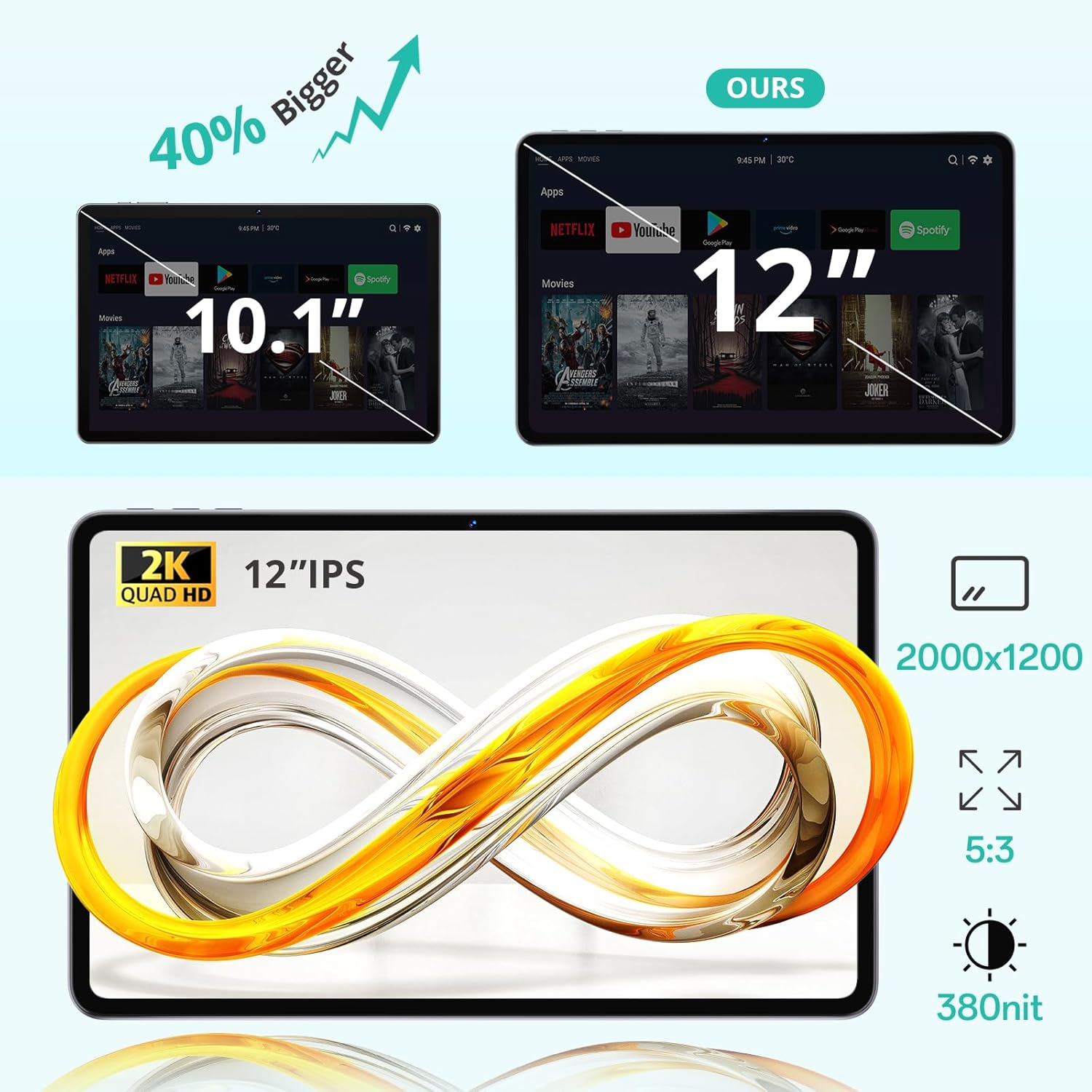
Image 3.1: The 12-inch display of the SVITOO P108 tablet, highlighting its 2K Quad HD resolution of 2000x1200, 5:3 aspect ratio, and 380 nit brightness, shown alongside a size comparison to a 10.1-inch tablet.
၅.၅ Widevine L1 ပံ့ပိုးမှု
The tablet supports Widevine L1, enabling high-definition streaming from popular services like Netflix, YouTube, and Prime Video. This ensures a premium viewing experience with crisp visuals.

Image 3.2: The SVITOO P108 tablet displaying a high-definition image, indicating Widevine L1 support for streaming content from platforms such as Disney+, Netflix, YouTube, and Prime Video.
3.4 Multitasking with Split-Screen
Utilize the split-screen feature to run two applications simultaneously. This enhances productivity, allowing you to watch videos while chatting or browse the web while taking notes.

Image 3.3: Step-by-step guide on how to activate split-screen mode on the tablet, showing how to tap the recent apps button, select an app, and choose 'Split screen' to open a second app alongside it.
3.5 Reading Mode
The tablet offers a dedicated reading mode that reduces blue light and optimizes brightness for a more comfortable and eye-friendly reading experience.

Image 3.4: The tablet displaying text in reading mode, emphasizing features like reduced blue light, optimized brightness, and overall eye-friendliness.
3.6 Parental Controls and Child-Friendly Interface
The tablet includes features for parental controls, allowing parents to manage content, screen time, and ensure a safe browsing environment for children. A child-friendly interface is also available for educational content.

Image 3.5: The tablet displaying a child-friendly interface with educational content and parental control options, indicating features like child-safe browsing and screen time management.
4. ထိန်းသိမ်းမှုနှင့် စောင့်ရှောက်မှု
၆.၁ တက်ဘလက်ကို သန့်ရှင်းရေးလုပ်ခြင်း
တက်ဘလက်၏ စခရင်နှင့် ကိုယ်ထည်ကို သန့်ရှင်းရန် ပျော့ပျောင်းသော ဖျတ်လတ်သော အဝတ်ကို အသုံးပြုပါ။ ခေါင်းမာသော အညစ်အကြေးများအတွက် အနည်းငယ် ဃampအဝတ်စကို ရေ သို့မဟုတ် စခရင် သန့်စင်ဆေးရည်ဖြင့် လိမ်းပါ။ ပြင်းထန်သော ဓာတုပစ္စည်းများ သို့မဟုတ် အညစ်အကြေးများကို အသုံးပြုခြင်းမှ ရှောင်ကြဉ်ပါ။
4.2 ဘက်ထရီကိုဂရုစိုက်ပါ
The tablet is equipped with an 8000 mAh lithium-ion battery. To prolong battery life:
- ပြင်းထန်သောအပူချိန်ကိုရှောင်ပါ။
- ဘက်ထရီကို မကြာခဏ လုံးဝကုန်မသွားပါစေနှင့်။
- မူရင်းအားသွင်းကိရိယာ သို့မဟုတ် အသိအမှတ်ပြု လိုက်ဖက်ညီသော အားသွင်းကိရိယာကို အသုံးပြုပါ။

Image 4.1: The tablet highlighting its 8800mAh battery, with icons indicating usage times for video, music, web browsing, and standby.
4.3 ဆော့ဖ်ဝဲ အပ်ဒိတ်များ
Regularly check for and install software updates to ensure optimal performance, security, and access to the latest features. Go to ဆက်တင်များ > စနစ် > စနစ်အပ်ဒိတ် အပ်ဒိတ်များကို စစ်ဆေးရန်။
၃
5.1 တက်ဘလက်ကို ဖွင့်မထားပါ။
- ဘက်ထရီအားသွင်းထားကြောင်း သေချာပါစေ။ အားသွင်းကြိုးကို ချိတ်ဆက်ပြီး ပြန်ဖွင့်ရန် မကြိုးစားမီ မိနစ်အနည်းငယ်စောင့်ပါ။
- အတင်းပြန်ဖွင့်ရန် ပါဝါခလုတ်ကို 10-15 စက္ကန့်ကြာ ဖိထားပါ။
5.2 နှေးကွေးသောစွမ်းဆောင်ရည်
- မလိုအပ်သော နောက်ခံအပလီကေးရှင်းများကို ပိတ်ပါ။
- Clear cache for frequently used apps (Settings > Apps > [App Name] > Storage > Clear Cache).
- လုံလောက်သော သိုလှောင်ရန်နေရာ ရှိနိုင်ကြောင်း သေချာပါစေ။
- တက်ဘလက်ကို ပြန်လည်စတင်ပါ။
5.3 Wi-Fi ချိတ်ဆက်မှု ပြဿနာများ
- အမြန်ဆက်တင်များတွင် Wi-Fi ကို ပိတ်ပြီး ဖွင့်ပါ။
- သင်၏ Wi-Fi router ကို ပြန်လည်စတင်ပါ။
- Forget the network and reconnect (Settings > Network & internet > Wi-Fi > [Network Name] > Forget).
5.4 မျက်နှာပြင် တုံ့ပြန်မှုမရှိခြင်း။
- ပါဝါခလုတ်ကို ၁၀-၁၅ စက္ကန့်ကြာ ဖိထားခြင်းဖြင့် အတင်းပြန်လည်စတင်ပါ။
- မျက်နှာပြင်သည် သန့်ရှင်းပြီး အစိုဓာတ်ကင်းစင်ကြောင်း သေချာပါစေ။
6. သတ်မှတ်ချက်များ
| ထူးခြားချက် | အသေးစိတ် |
|---|---|
| မော်ဒယ်အမည် | P108 |
| ရုပ်ထွက်အရွယ်အစား | ၁၁ လက်မ |
| Max Screen Resolution | 2000 x 1200 Pixels |
| ကွန်ပျူတာစက်လည်ပတ်ရေးစနစ်ပရိုဂရမ် | Android 15 |
| ပရိုဆက်ဆာ | Unisoc T606 Octa-Core (1.8 GHz) |
| ရမ် | 6 GB (24 GB အထိ ထပ်တိုးနိုင်သည်) |
| သိုလှောင်မှု | 128 GB (expandable via microSD up to 1TB) |
| ဘက်ထရီ စွမ်းဆောင်ရည် | 8000 mAh |
| ဘက်ထရီသက်တမ်း | Up to 8 hours (general use) |
| အနောက်ကင်မရာ | 13 MP |
| ရှေ့ကင်မရာ | 5 MP |
| ချိတ်ဆက်မှု | Wi-Fi (2.4G/5G, 802.11ac/b/g/n), Bluetooth 5.0, GPS |
| ဆိပ်ကမ်းများ | 1x USB Type-C, 1x 3.5mm Audio Jack, 1x TF Card Slot |
| အတိုင်းအတာများ | ၃၆ x ၁၃.၃ x ၄ စင်တီမီတာ |
| အလေးချိန် | 940 ဂရမ် |
| အထူးအင်္ဂါရပ်များ | Widevine L1, GPS |
7. အာမခံနှင့် ပံ့ပိုးမှု
7.1 အာမခံအချက်အလက်
The SVITOO P108 tablet comes with a ထုတ်လုပ်သူ၏ တစ်နှစ်အာမခံ. ဤအာမခံချက်သည် ပုံမှန်အသုံးပြုမှုအောက်တွင် ပစ္စည်းများနှင့် လက်ရာများတွင် ချို့ယွင်းချက်များကို အကျုံးဝင်ပါသည်။ အာမခံတောင်းဆိုမှုများအတွက် သင်၏ဝယ်ယူမှုအထောက်အထားကို သိမ်းဆည်းပါ။
7.2 ဖောက်သည်ပံ့ပိုးမှု
For technical assistance, troubleshooting, or warranty inquiries, please contact SVITOO customer service. Support is available 24 hours a day, 7 days a week. Please refer to the contact information provided with your purchase or on the official SVITOO website.