
1. နိဒါန်း
This manual provides detailed instructions for the setup, operation, and maintenance of your DeLUX Wireless Full Size Ergonomic Keyboard and Small Silent Vertical Mouse Combo. Please read this manual thoroughly before using the product to ensure optimal performance and longevity.
2. အထုပ်အကြောင်းအရာများ
- DeLUX Wireless Ergonomic Keyboard (GM909)
- DeLUX Small Silent Vertical Mouse
- USB 2.4G Receiver (stored in keyboard or mouse)
- USB-C အားသွင်းကြိုး
- အသုံးပြုသူလက်စွဲ

Image: DeLUX GM909 keyboard packaging and included accessories, including the keyboard, a USB cable, and a small manual.
3. အဓိကအင်္ဂါရပ်များ
- Ergonomic ဒီဇိုင်း Natural arc and split keyboard layout with a cushioned palm rest for comfortable typing. The vertical mouse features a handshake grip to reduce wrist strain.
- Dual Mode ချိတ်ဆက်မှု- Supports 2.4G wireless and Bluetooth (BT1, BT2) connections, allowing seamless switching between up to three devices.
- အားပြန်သွင်းနိုင်သော ဘက်ထရီ- Built-in 500mAh Li-Ion battery for extended use.
- အသံတိတ် လုပ်ဆောင်ချက် Mouse features silent clicks, and the keyboard uses quiet scissor switches.
- အရွယ်အစားအပြည့် အပြင်အဆင်- Enhances productivity with a complete set of keys and shortcuts.

Image: Illustration showing the ergonomic vertical mouse promoting a natural handshake posture to reduce wrist strain.

Image: A person typing on the ultra-thin ergonomic split keyboard, highlighting the natural arc and slope for comfortable typing.
4. စနစ်ထည့်သွင်းရန် ညွှန်ကြားချက်များ
4.1. စက်ပစ္စည်းများကို အားသွင်းပါ။
Both the keyboard and mouse are equipped with built-in rechargeable batteries. Before first use, it is recommended to fully charge both devices.
- Connect the provided USB-C charging cable to the charging port on the keyboard (located on the top edge) and the mouse (located on the front).
- ကြိုး၏အခြားတစ်ဖက်ကို USB ပါဝါရင်းမြစ် (ဥပမာ၊ ကွန်ပျူတာ USB အပေါက်၊ USB နံရံအဒက်တာ) နှင့် ချိတ်ဆက်ပါ။
- The indicator light on the keyboard/mouse will show charging status (refer to device for specific light behavior).
- A full charge typically takes approximately 1.5 hours for the keyboard.

Image: Close-up of the ergonomic keyboard showing a USB-C cable connected to its charging port, indicating the rechargeable battery feature.
၂။ ကီးဘုတ်နှင့် မောက်စ် ချိတ်ဆက်ခြင်း
The combo supports three connection modes: 2.4G wireless (via USB receiver) and two Bluetooth channels (BT1, BT2).
4.2.1. 2.4G Wireless Connection (Keyboard & Mouse)
- Locate the USB 2.4G receiver. For the keyboard, it is typically stored in a magnetic compartment on the underside. For the mouse, it might be in a slot on the bottom.
- လက်ခံကိရိယာကို ဖယ်ရှားပြီး သင့်ကွန်ပြူတာတွင် ရရှိနိုင်သော USB အပေါက်တစ်ခုတွင် ပလပ်ထိုးပါ။
- ကီးဘုတ်နှင့် မောက်စ်ကို ၎င်းတို့၏ သက်ဆိုင်ရာ ပါဝါခလုတ်များကို အသုံးပြု၍ ဖွင့်ပါ။
- ကီးဘုတ်အတွက်၊ ကိုနှိပ်ပါ Fn + ၆ keys to switch to 2.4G mode. The indicator light will confirm the connection.
- The mouse should automatically connect. If not, ensure it's in 2.4G mode (check the switch on the bottom).
- သင့်စက်ပစ္စည်းများသည် ယခုအသုံးပြုရန် အသင့်ဖြစ်နေပါပြီ။
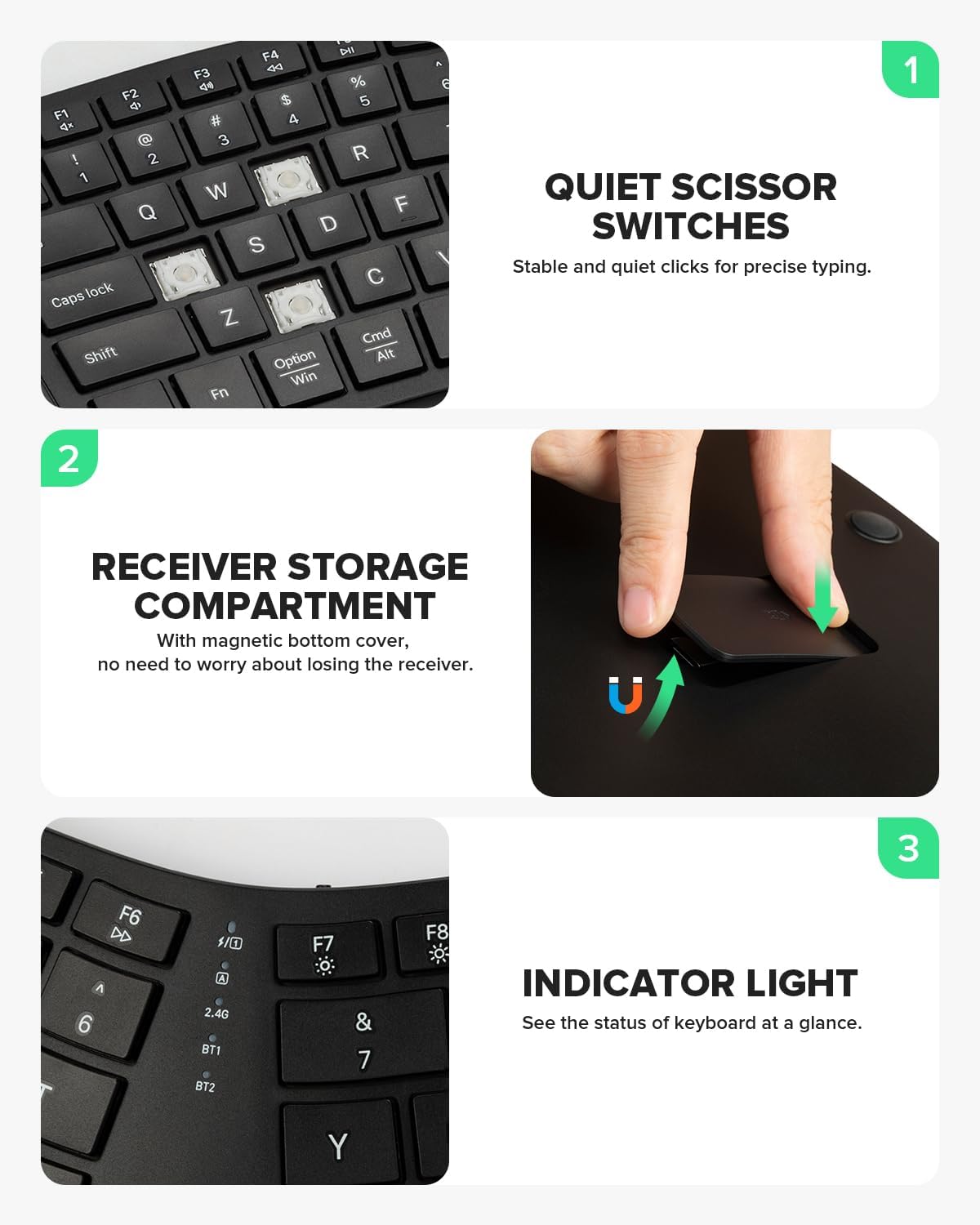
Image: A three-part image showing the quiet scissor switches, the magnetic receiver storage compartment on the keyboard's underside, and the indicator light.
4.2.2. Bluetooth Connection (Keyboard & Mouse)
You can connect the keyboard and mouse to two different Bluetooth devices (BT1 and BT2).
- ဘလူးတုသ်ကို ဖွင့်ပါ- သင့်ကွန်ပျူတာ သို့မဟုတ် စက်တွင် Bluetooth ကို ဖွင့်ထားကြောင်း သေချာပါစေ။
- ဘလူးတုသ် ချန်နယ်ကို ရွေးချယ်ပါ-
- ကီးဘုတ်အတွက် နှိပ်ပါ Fn + ၆ for BT1 or Fn + ၆ for BT2. The corresponding indicator light will blink slowly.
- For the mouse, switch the mode button on the bottom to BT1 or BT2. The indicator light will blink slowly.
- Pairing Mode ကိုရိုက်ထည့်ပါ။
- For the keyboard, press and hold Fn + ၆ (သို့မဟုတ် Fn + ၆) for 3-5 seconds until the indicator light blinks rapidly.
- For the mouse, press and hold the mode button on the bottom for 3-5 seconds until the indicator light blinks rapidly.
- စက်နှင့်တွဲပါ- On your computer/device, go to Bluetooth settings and search for new devices. Select "DeLUX Keyboard" or "DeLUX Mouse" from the list.
- ချိတ်ဆက်မှုကို အတည်ပြုပါ- Once paired, the indicator light on the device will stop blinking and remain solid for a few seconds before turning off.

Image: The ergonomic keyboard on a desk with a laptop, tablet, and monitor, illustrating its multi-device connection capability via 2.4G, BT1, and BT2.
5. လုပ်ငန်းဆောင်ရွက်မှုညွှန်ကြားချက်များ
5.1. ကီးဘုတ်လုပ်ဆောင်ချက်များ
- စက်ပစ္စည်းများကို ပြောင်းခြင်း- သုံးပါ။ Fn + ၆ (2.4G), Fn + ၆ (BT1), or Fn + ၆ (BT2) to switch between connected devices.
- မာလ်တီမီဒီယာကီးများ- The F1-F12 keys have secondary multimedia functions. Press Fn + F[key] to activate these functions (e.g., volume control, media playback).
- အချက်ပြမီးများ- Located near the F-keys, these lights indicate connection status, battery level, and Caps Lock/Num Lock.

Image: Close-up of the keyboard's F-keys, highlighting the multimedia function buttons that can be accessed by pressing the Fn key in combination with F1-F12.
၄.၂။ မောက်စ်လုပ်ဆောင်ချက်များ
- DPI ချိန်ညှိချက်- The mouse may have a DPI button (often near the scroll wheel) to adjust cursor sensitivity. Refer to the mouse's specific markings for details.
- ရှေ့/နောက်သို့ ခလုတ်များ- Side buttons typically function as forward and backward navigation in web ဘရောင်ဇာ။
- အသံတိတ် ကလစ်များ- Designed for quiet operation, reducing click noise.

Image: A vertical mouse with arrows pointing to the left and right click buttons, indicating its quiet click feature, with a sleeping person in the background.
6. ပြုပြင်ထိန်းသိမ်းမှု
- သန့်ရှင်းရေး- ကီးဘုတ်နှင့် မောက်စ်၏ မျက်နှာပြင်များကို သန့်ရှင်းရန် နူးညံ့ခြောက်သွေ့သော အဝတ်ကို အသုံးပြုပါ။ ခေါင်းမာသောအညစ်အကြေးများအတွက်အနည်းငယ်ဃamp ဆပ်ပြာအပျော့စားဖြင့် အဝတ်စကို အသုံးပြုနိုင်ပြီး အရည်များ ကိရိယာများအတွင်းသို့ မဝင်စေရန် သေချာစေပါသည်။
- သိုလှောင်မှု- စက်ပစ္စည်းများကို နေရောင်ခြည်တိုက်ရိုက်နှင့် ပြင်းထန်သောအပူချိန်များနှင့် ဝေးဝေး အေးပြီးခြောက်သွေ့သောနေရာတွင် သိမ်းဆည်းပါ။
- ဘက်ထရီ စောင့်ရှောက်မှု- ဘက်ထရီသက်တမ်း ကြာရှည်စေရန်အတွက် စက်ပစ္စည်းများကို မကြာခဏ အားကုန်ခြင်းမှ ရှောင်ကြဉ်ပါ။ ဘက်ထရီအားနည်းနေကြောင်း အချက်ပြမီး ပေါ်လာသည့်အခါ အားသွင်းပါ။
၃
| ပြဿနာ | ဖြစ်နိုင်သောဖြေရှင်းချက် |
|---|---|
| Device not connecting (2.4G) |
|
| Device not connecting (Bluetooth) |
|
| ပြတ်တောက်ခြင်း သို့မဟုတ် အဆက်မပြတ်ချိတ်ဆက်မှု |
|
| Keys or mouse buttons not responding |
|
8. သတ်မှတ်ချက်များ
| ထူးခြားချက် | အသေးစိတ် |
|---|---|
| အမှတ်တံဆိပ် | DeLUX |
| Model (Keyboard) | GM909 |
| ချိတ်ဆက်မှုနည်းပညာ | ဘလူးတုသ်၊ 2.4G ကြိုးမဲ့ |
| တွဲဖက်သုံးနိုင်သော စက်များ | လက်ပ်တော့၊ ကိုယ်ပိုင်ကွန်ပျူတာ၊ တက်ဘလက် |
| အရောင် | အနက်ရောင် |
| ကီးဘုတ်ဖော်ပြချက် | Ergonomic, Full-size, Split |
| မောက်စ်ဒီဇိုင်း | Vertical, Ergonomic, Silent Click |
| ဘက်ထရီ | Built-in 500mAh Li-Ion (Rechargeable) |
9. ထုတ်ကုန် ဗီဒီယို
ဗီဒီယို- တစ်ချက်view of the DeLUX Ultra-thin Ergonomic Split Wireless Keyboard (GM909), demonstrating its ergonomic design, comfortable typing experience, and key features.
10. အာမခံနှင့် ပံ့ပိုးမှု
For warranty information, technical support, or further assistance, please refer to the official DeLUX website or contact their customer service directly. Product registration may be available for extended warranty benefits.
သွားရောက်ကြည့်ရှု DeLUX Store on Amazon နောက်ထပ်ထုတ်ကုန်များနှင့် အချက်အလက်များအတွက်။