
iProda 15.6-inch Portable Monitor
iProda 15.6-inch Portable Monitor User Manual
Model: 15.6-inch Portable Monitor
Brand: iProda
1. နိဒါန်း
Thank you for choosing the iProda 15.6-inch Portable Monitor. This device is designed to enhance your productivity and entertainment by providing a versatile second screen for your laptop, PC, smartphone, and gaming consoles. This manual will guide you through the setup, operation, and maintenance of your new monitor.
၄
- 15.6-inch Full HD (1080p) IPS Display: ကြည်လင်တောက်ပသော အရောင်များနှင့် ကျယ်ပြန့်သော အတွေ့အကြုံကို ခံစားလိုက်ပါ viewing ဆိုတာပါပဲ။
- 60Hz ပြန်လည်စတင်မှုနှုန်း- Ensures smooth visuals for work and entertainment.
- အလင်းပြန်မှု ဆန့်ကျင်သည့် မျက်နှာပြင်- သက်တောင့်သက်သာရှိစေရန်အတွက် ရောင်ပြန်ဟပ်မှုကို လျှော့ချပေးသည် viewအလင်းရောင်အခြေအနေအမျိုးမျိုးတွင်။
- ပေါ့ပါးပြီး သယ်ဆောင်ရလွယ်ကူသည်- Weighing approximately 1.2 kg (2.6 lbs) and only 0.6 cm (0.24 inches) thick, it's ideal for on-the-go use.
- ပလပ်ထိုးပြီး အသုံးပြုနိုင်သော ချိတ်ဆက်မှု- Simple setup with USB-C or HDMI.
- Built-in စပီကာများ အဆင်ပြေစေရန်အတွက် ပေါင်းစပ်ထားသော အသံ။
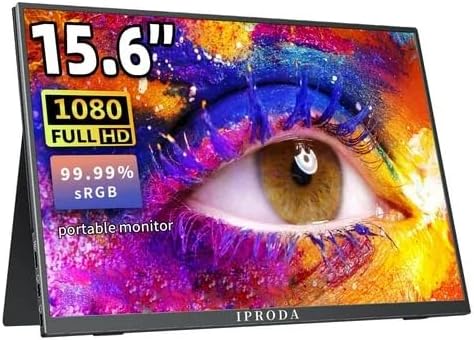
Figure 2.1: iProda 15.6-inch Portable Monitor showcasing its 1080 Full HD resolution and sRGB color accuracy.

Figure 2.2: Close-up of the iProda portable monitor screen highlighting IPS technology and a 178-degree super wide viewing angle for an excellent visual experience.
3. စနစ်ထည့်သွင်းခြင်းလမ်းညွှန်
The iProda portable monitor is designed for easy plug-and-play setup. Follow these steps to connect your device:
- ပါဝါချိတ်ဆက်မှု- Connect the monitor to a power source using the provided USB-C cable and a compatible power adapter (not always included, check packaging).
- ဗီဒီယိုချိတ်ဆက်မှု-
- USB-C (Full Function): If your device (laptop, smartphone) has a full-function USB-C port that supports video output and power delivery, simply connect a single USB-C cable from your device to one of the monitor's USB-C ports.
- Mini HDMI- Connect a mini HDMI to HDMI cable from the monitor's mini HDMI port to your device's HDMI port. You will also need to connect a USB-C cable for power.
- အသံ (ချန်လှပ်ထားနိုင်သည်) If you prefer to use external headphones or speakers, connect them to the 3.5mm audio jack on the monitor.
- စက်ပစ္စည်း ဆက်တင်များ- Your device should automatically detect the monitor. If not, you may need to adjust display settings in your operating system (e.g., Windows Display Settings, macOS System Preferences).
4. လုပ်ငန်းဆောင်ရွက်မှုညွှန်ကြားချက်များ
The monitor features intuitive controls for adjusting settings:
- Power Button / Return Button: Press and hold to power on/off. Short press to return to the previous menu in OSD settings.
- Dial-wheel Switch (OSD Settings):
- စာနယ်ဇင်း- Enter the On-Screen Display (OSD) menu.
- Scroll Up/Down: မီနူးရွေးချယ်စရာများကို ရွှေ့ပါ သို့မဟုတ် တန်ဖိုးများကို ချိန်ညှိပါ။
- Press (while in menu): ရွေးချယ်မှုကို အတည်ပြုပါ။
The OSD menu allows you to adjust brightness, contrast, color settings, input source, and other display parameters.
5. Connectivity and Compatibility
The iProda portable monitor offers broad compatibility with various devices:
- USB-C (x2, Full Function): Connects to laptops, PCs, tablets, and smartphones that support DisplayPort Alternate Mode and Power Delivery.
- Mini HDMI (x1): Connects to devices with an HDMI output, including laptops, PCs, gaming consoles (Xbox, PlayStation, Nintendo Switch), and media players.
- ၃.၅ မီလီမီတာ နားကြပ်ဂျက် (x၁): ပြင်ပအသံကိရိယာများကို ချိတ်ဆက်ရန်အတွက်။
လိုက်ဖက်ညီသော ကိရိယာများ ပါဝင်သည်-
- Desktop ကွန်ပျူတာများ
- လက်တော့ပ်များ (Windows၊ macOS)
- တက်ဘလက်များ
- Smartphones (with full-function USB-C)
- Nintendo Switch
- PlayStation 4/5
- Xbox One/Series X|S

Figure 5.1: Port layout and compatible devices for the iProda portable monitor.
6. အသုံးပြုမှုမုဒ်များ
When connected to a laptop or PC, the iProda portable monitor supports various display modes:
- ပွားမုဒ်- Displays the same content on both your primary screen and the portable monitor. Ideal for presentations or sharing content.
- တိုးချဲ့မုဒ်- Extends your desktop across both screens, providing more screen real estate for multitasking. Drag windows between screens.
- ဒုတိယမျက်နှာပြင်သာမုဒ်- Displays content only on the portable monitor, with your primary screen turned off. Useful for focusing on a single display or when using the portable monitor as the main display.

Figure 6.1: Display modes (Duplicate, Extend, Second Screen Only) with a laptop.
၂။ အပလီကေးရှင်းများနှင့် အသုံးပြုမှုကိစ္စရပ်များ
The iProda portable monitor is versatile for various scenarios:
- Daily Work & Business: Enhance productivity by extending your workspace for spreadsheets, documents, and presentations.
- Phone Extension: Transform your smartphone into a larger display for media consumption or light productivity tasks.
- On-the-GO: Its lightweight design makes it perfect for travel, remote work, or mobile presentations.
- ဂိမ်းဆော့ခြင်း- Connect to your favorite gaming consoles for an immersive gaming experience anywhere.
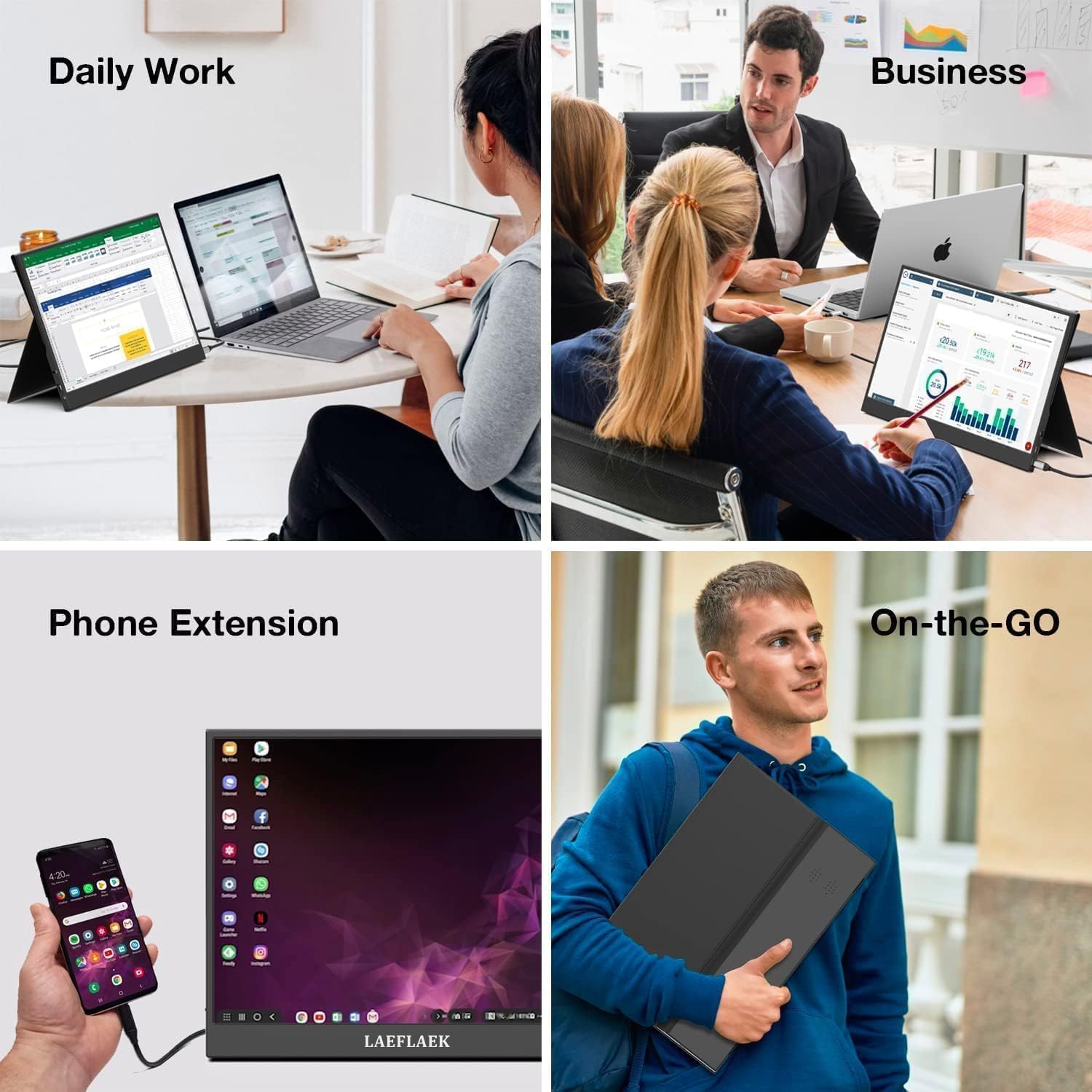
Figure 7.1: Various applications of the iProda portable monitor.

Figure 7.2: iProda portable monitor used for gaming with various consoles.
8. ပြုပြင်ထိန်းသိမ်းမှု
To ensure the longevity and optimal performance of your iProda portable monitor, follow these maintenance guidelines:
- မျက်နှာပြင်ကို သန့်ရှင်းရေးလုပ်ခြင်း- ပျော့ပျောင်းသော အထည်အလိပ်ကင်းသော အဝတ်ကို အနည်းငယ်ဃampရေ သို့မဟုတ် မျက်နှာပြင်သန့်စင်ဆေးရည်ဖြင့် ဖြန်းပါ။ မျက်နှာပြင်ပေါ်သို့ အရည်ကို တိုက်ရိုက်မဖြန်းပါနှင့်။ ပြင်းထန်သော ဓာတုပစ္စည်းများ သို့မဟုတ် ပွတ်တိုက်ပစ္စည်းများကို ရှောင်ကြဉ်ပါ။
- C သန့်ရှင်းရေးasing: မော်နီတာ၏ဂသုတ်asing နူးညံ့ခြောက်သွေ့သောအဝတ်ဖြင့်
- သိုလှောင်မှု- အသုံးမပြုသည့်အခါ မော်နီတာကို အေးပြီးခြောက်သွေ့သောနေရာတွင် သိမ်းဆည်းပါ၊ ဖုန်မှုန့်နှင့် ခြစ်ရာများကို ကာကွယ်ရန် မူရင်းထုပ်ပိုးမှု သို့မဟုတ် အကာအကွယ်အစွပ်ဖြင့် သိမ်းဆည်းပါက ပိုကောင်းပါသည်။
- ကိုင်တွယ်ခြင်း- မော်နီတာအား ၎င်း၏အစွန်းများဖြင့် အမြဲတမ်းကိုင်တွယ်ပါ။ မျက်နှာပြင်ကို ဖိအားသက်ရောက်ခြင်းမှ ရှောင်ကြဉ်ပါ။
၃
If you encounter issues with your iProda portable monitor, refer to the following common problems and solutions:
| ပြဿနာ | ဖြစ်နိုင်သော အကြောင်းတရား | ဖြေရှင်းချက် |
|---|---|---|
| Signal / Black Screen မရှိပါ။ | Incorrect input source selected; Loose cable connection; Insufficient power; Device not outputting video. | Check cable connections; Ensure monitor is powered; Select correct input source via OSD; Verify device's video output settings. |
| ပါဝါမရှိ။ | Power cable not connected; Power adapter faulty; USB-C port on device not providing enough power. | Ensure power cable is securely connected; Try a different power adapter/USB-C port; Use an external power source if needed. |
| တုန်ခါနေသော မျက်နှာပြင် | Faulty cable; Interference; Graphics driver issue. | Try a different cable; Ensure no strong electromagnetic interference; Update graphics drivers on your connected device. |
| No Audio from Monitor | Monitor volume too low; Audio output not set to monitor; External speakers/headphones connected. | Adjust monitor volume via OSD; Set audio output to the monitor in your device's sound settings; Disconnect external audio devices if using monitor speakers. |
If the problem persists after trying these solutions, please contact iProda customer support for further assistance.
10. သတ်မှတ်ချက်များ
| ထူးခြားချက် | သတ်မှတ်ချက် |
|---|---|
| မျက်နှာပြင်အရွယ်အစား | ၄ လက်မ |
| Display အမျိုးအစား | IPS, Anti-glare |
| ဆုံးဖြတ်ချက် | Full HD (1920 x 1080) |
| ပြန်လည်စတင်မှုနှုန်း | 60Hz |
| အချိုးအစား | ၁၁:၄၂ |
| ချိတ်ဆက်မှု | 2x USB-C (Full Function), 1x Mini HDMI, 1x 3.5mm Audio Jack |
| အလေးချိန် | အနီးစပ်ဆုံး 1.2 ကီလိုဂရမ် (2.6 ပေါင်) |
| အထူ | အနီးစပ်ဆုံး 0.6 စင်တီမီတာ (0.24 လက်မ) |
| Built-in စပီကာများ | ဟုတ်ကဲ့ |
11. အာမခံနှင့် ပံ့ပိုးမှု
Your iProda portable monitor comes with a standard manufacturer's warranty. Please refer to the warranty card included in your product packaging for specific terms and conditions.
For technical support, troubleshooting assistance, or warranty claims, please contact iProda customer service through the contact information provided on the official iProda webဆိုက် သို့မဟုတ် သင်၏ဝယ်ယူမှု ပလပ်ဖောင်း။
Please have your product model and purchase details ready when contacting support.
Ask a question about this manual
Ask about setup, troubleshooting, compatibility, parts, safety, or missing instructions. Manuals+ will review the question and use this page’s manual context to help answer it.