
1. နိဒါန်း
This manual provides essential information for the safe and efficient operation of your iProda 2 in 1 Laptop, Model M1169YM. Please read this manual thoroughly before using the device and retain it for future reference. This convertible laptop features an 11.6-inch touchscreen, powered by an Intel N4100 processor, and runs on Windows 10 Pro.

Image: The iProda 2 in 1 Laptop can be used in multiple configurations, including traditional laptop, tent, stand, and tablet modes, showcasing ၎င်း၏ဘက်စုံနိုင်စွမ်း။
2. ဘေးကင်းရေးအချက်အလက်
သင့်စက် ပျက်စီးမှု သို့မဟုတ် ကိုယ့်ကိုယ်ကိုယ် ထိခိုက်ဒဏ်ရာရမှုမှ ကာကွယ်ရန် အောက်ပါဘေးကင်းရေး ကြိုတင်ကာကွယ်မှုများကို လိုက်နာပါ-
- ကိရိယာကို အပူချိန်လွန်ကဲစွာ၊ နေရောင်တိုက်ရိုက် သို့မဟုတ် မြင့်မားသော စိုထိုင်းဆနှင့် မထိတွေ့ပါနှင့်။
- စက်ပစ္စည်းကို ပြင်းထန်စွာ သက်ရောက်မှုရှိစေရန် ပစ်ချခြင်း သို့မဟုတ် ချထားခြင်းကို ရှောင်ကြဉ်ပါ။
- Use only the provided or approved power adapter for charging.
- ကိရိယာကို ရေနှင့် အခြားအရည်များနှင့် ဝေးဝေးတွင်ထားပါ။
- စက်ပစ္စည်းကို ကိုယ်တိုင် တပ်ဆင်ရန် သို့မဟုတ် ပြုပြင်ရန် မကြိုးစားပါနှင့်။ အရည်အချင်းပြည့်မီသော ဝန်ဆောင်မှုဝန်ထမ်းများကို ကိုးကားပါ။
3. အထုပ်အကြောင်းအရာများ
သင့်ပက်ကေ့ဂျ်တွင် ပစ္စည်းအားလုံးပါဝင်ကြောင်း အတည်ပြုပါ-
- iProda 2 in 1 Laptop (Model M1169YM)
- Power Adapter
- အသုံးပြုသူလက်စွဲ (ဤစာရွက်စာတမ်း)
4. ကုန်ပစ္စည်းကျော်view
The iProda 2 in 1 Laptop is designed for versatility, offering multiple usage modes and essential connectivity options.
4.1. အဓိကအင်္ဂါရပ်များ
- 11.6-inch IPS Touchscreen: A responsive 10-point precision touchscreen with 1920x1080 resolution for interactive use.
- ပြောင်းနိုင်သော ဒီဇိုင်း- 360-degree hinge allows seamless transition between laptop, tablet, tent, and stand modes.
- Intel N4100 Processor: Provides efficient performance for daily tasks.
- Windows 10 Pro: Pre-installed operating system for productivity and security.
- တိုးချဲ့နိုင်သော သိုလှောင်မှု- Supports M.2 2242 SSD for additional storage capacity.

Image: Key features of the iProda laptop, including its touchscreen, operating system, display specifications, and camera resolution.

Image: The laptop's 360-degree hinge allows it to convert into a tablet, enabling direct interaction via its precision touchscreen.
၂.၃။ ဆိပ်ကမ်းများနှင့် ခလုတ်များ
Familiarize yourself with the various ports and buttons on your laptop:
- Type-C Port: Used for power supply and data transfer.
- မိုက်ခရို HDMI ပြင်ပပြသမှုများနှင့်ချိတ်ဆက်ရန်။
- Micro USB- USB ကိရိယာများကို ချိတ်ဆက်ရန်အတွက်။
- TF ကဒ်အထိုင်: For expanding storage with a TF (MicroSD) card.
- ပါဝါခလုတ်- စက်ပစ္စည်းကို ဖွင့်/ပိတ်ရန် သို့မဟုတ် အိပ်စက်ရန်။
- အသံအတိုးအကျယ်ခလုတ်များ- To adjust audio output.
- နားကြပ်ဂျက်: နားကြပ်များ သို့မဟုတ် ပြင်ပစပီကာများကို ချိတ်ဆက်ရန်အတွက်။

ပုံ- အသေးစိတ် view of the laptop's side panels, indicating the location and function of each port and button for easy identification.
5. စနစ်ထည့်သွင်းပါ။
5.1. ဘက်ထရီကို အားသွင်းပါ။
Before first use, fully charge the laptop's battery. Connect the provided power adapter to the Type-C port on the laptop and plug it into a power outlet. The charging indicator light will illuminate.
5.2. ပထမဦးစွာ Boot နှင့် Windows Setup
- မျက်နှာပြင် လင်းလာသည်အထိ ပါဝါခလုတ်ကို ဖိထားပါ။
- ဘာသာစကားရွေးချယ်မှု၊ ကွန်ရက်ချိတ်ဆက်မှုနှင့် အသုံးပြုသူအကောင့်ဖန်တီးမှုတို့အပါအဝင် Windows 10 Pro ကနဦးထည့်သွင်းမှုကို အပြီးသတ်ရန် စခရင်ပေါ်ရှိ ညွှန်ကြားချက်များကို လိုက်နာပါ။
6. သင်၏ Laptop ကို လည်ပတ်ခြင်း
6.1. Touchscreen ကိုအသုံးပြုခြင်း။
The 10-point precision touchscreen allows for intuitive interaction with Windows 10 Pro. Use gestures such as tapping, swiping, pinching, and stretching to navigate, zoom, and interact with applications.
6.2. Keyboard နှင့် Touchpad
The integrated keyboard and touchpad provide traditional input methods. The touchpad supports multi-touch gestures for scrolling, zooming, and switching applications.

Image: The laptop's full-size American keyboard and responsive touchpad, designed for comfortable typing and navigation.
၄.၁။ ပြောင်းလဲနိုင်သော မုဒ်များ
The 360-degree hinge allows you to switch between various modes:
- လက်ပ်တော့မုဒ်- စာရိုက်ခြင်းနှင့် ထုတ်လုပ်နိုင်စွမ်းအတွက် စံသတ်မှတ်ထားသော ဖွဲ့စည်းမှု။
- တက်ဘလက်မုဒ်- Fold the screen back completely for a tablet experience, ideal for browsing or drawing.
- တဲမုဒ်- Position the laptop like a tent for media consumption or presentations.
- ရပ်မုဒ်- Flip the keyboard face down to use the screen as a display, suitable for watching videos.

Image: The laptop configured in tent mode, demonstrating its flexibility for viewing content without the keyboard in the way.
7. သိုလှောင်မှု တိုးချဲ့ခြင်း။
The laptop comes with 64GB eMMC storage. You can expand the storage capacity by installing an M.2 2242 SSD (128GB/256GB/512GB, not included).
7.1. Installing an M.2 2242 SSD
To install an M.2 2242 SSD:
- Power off the laptop and disconnect the power adapter.
- Carefully open the back cover of the laptop.
- Locate the M.2 slot.
- Insert the M.2 2242 SSD into the slot and secure it with the appropriate screw (if provided).
- နောက်ကျောဖုံးကိုအစားထိုးလိုက်ပါ။
- Upon booting, you may need to initialize and format the new SSD through Windows Disk Management.
Note: If you are unsure about this procedure, it is recommended to seek professional assistance.

Image: Visual representation of the M.2 SSD slot, illustrating how additional storage can be integrated into the laptop.
8. ချိတ်ဆက်မှု
8.1. ဝိုင်ဖိုင်ချိတ်ဆက်မှု
The laptop supports dual-frequency 2.4GHz/5GHz Wi-Fi. To connect to a wireless network:
- စနစ်ဗန်းရှိ Wi-Fi အိုင်ကွန်ကို နှိပ်ပါ။
- စာရင်းထဲမှ သင်အလိုရှိသော ကွန်ရက်ကို ရွေးချယ်ပါ။
- ကွန်ရက်စကားဝှက်ကို မေးမြန်းပါက ရိုက်ထည့်ပြီး 'ချိတ်ဆက်ရန်' ကိုနှိပ်ပါ။
8.2. External Display (Micro HDMI)
Connect an external monitor or TV using a Micro HDMI to HDMI cable. Once connected, you can configure display settings (duplicate, extend, second screen only) through Windows display settings.
8.3. USB စက်များ
Use the Micro USB port or the Type-C port (with an appropriate adapter) to connect peripherals such as a mouse, keyboard, or external storage devices.
9. ပြုပြင်ထိန်းသိမ်းမှု
၁၁.၁။ သန့်ရှင်းရေး
To clean the laptop, power it off and disconnect the power adapter. Use a soft, lint-free cloth slightly dampရေ သို့မဟုတ် မျက်နှာပြင်သန့်စင်ဆေးရည်ဖြင့် ဆေးကြောပါ။ ပြင်းထန်သော ဓာတုပစ္စည်းများ သို့မဟုတ် ပွတ်တိုက်ပစ္စည်းများကို ရှောင်ကြဉ်ပါ။
9.2. ဘက်ထရီ ဂရုစိုက်ပါ။
ဘက်ထရီသက်တမ်းရှည်ရန်
- ဘက်ထရီကို မကြာခဏ အားအပြည့်သွင်းခြင်းမှ ရှောင်ကြဉ်ပါ။
- Do not expose the laptop to high temperatures.
- Laptop ကို ကြာရှည်စွာ သိမ်းဆည်းထားပါက ဘက်ထရီကို ၅၀-၆၀% ဝန်းကျင်တွင် အားသွင်းထားကြောင်း သေချာပါစေ။
၃
ဤသည်မှာ သင်ကြုံတွေ့ရနိုင်သော ဘုံပြဿနာများအတွက် ဖြေရှင်းနည်းများဖြစ်သည်။
| ပြဿနာ | ဖြေရှင်းချက် |
|---|---|
| လက်ပ်တော့ ပါဝါမဖွင့်ပါ။ | Ensure the battery is charged. Connect the power adapter and try again. If still unresponsive, perform a hard reset by holding the power button for 10-15 seconds. |
| မျက်နှာပြင်သည် ကွက်လပ် သို့မဟုတ် တုန်ခါနေသည်။ | Restart the laptop. Check if an external display is connected and interfering. Update display drivers if possible. |
| Wi-Fi ချိတ်ဆက်မှု ပြဿနာများ။ | Ensure Wi-Fi is enabled. Restart your router and the laptop. Check network settings in Windows. |
| ထိတွေ့မျက်နှာပြင်သည် တုံ့ပြန်မှုမရှိပါ။ | Restart the laptop. Ensure the screen is clean. Check for any pending Windows updates or driver updates for the touchscreen. |
11. သတ်မှတ်ချက်များ
Technical specifications for the iProda 2 in 1 Laptop (Model M1169YM):
| ထူးခြားချက် | အသေးစိတ် |
|---|---|
| အမှတ်တံဆိပ် | iProda |
| မော်ဒယ်နံပါတ် | M1169YM |
| ကွန်ပျူတာစက်လည်ပတ်ရေးစနစ်ပရိုဂရမ် | Windows 10 Pro |
| မျက်နှာပြင်အရွယ်အစား | ၁၁ လက်မ |
| မျက်နှာပြင် ကြည်လင်ပြတ်သားမှု | 1920 x 1080 pixels (1080p) |
| ပရိုဆက်ဆာ | Intel N4100 (up to 2.4 GHz Burst Frequency) |
| ရမ် | 4 GB DDR4 |
| Hard Drive | 64 GB eMMC |
| ဂရပ်ဖစ်ကတ် | Integrated (UHD 600 Graphics) |
| ကြိုးမဲ့အမျိုးအစား | 2.4 GHz / 5 GHz Dual-frequency Wi-Fi |
| ပျမ်းမျှ ဘက်ထရီသက်တမ်း | 8 Hours (3500mAh, 27Wh) |
| ပစ္စည်းအလေးချိန် | ၁၆.၈၉ ပေါင် |
| ထုတ်ကုန်အတိုင်းအတာများ | 11.99 x 11.6 x 0.5 လက်မ |
| ချိတ်ဆက်မှုနည်းပညာ | HDMI, USB Type-C, Micro USB |
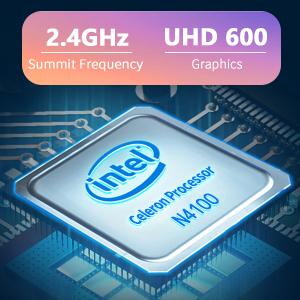
Image: The Intel Celeron N4100 processor, central to the laptop's performance, highlighting its clock speed and integrated graphics capabilities.

Image: The laptop's battery specifications, indicating its power capacity for extended use.
12. အာမခံနှင့် ပံ့ပိုးမှု
For warranty information and technical support, please refer to the documentation included with your purchase or visit the official iProda website. Contact information for customer service can typically be found on the manufacturer's support page.