
1. နိဒါန်း
This manual provides detailed instructions for the installation, operation, and maintenance of your CenturyLink Technicolor C2100T 802.11AC Modem Router. The C2100T is designed to provide high-speed internet access via DSL or fiber connections, featuring dual-band Wi-Fi (2.4GHz and 5GHz) and Gigabit Ethernet ports for robust home networking.
သင့်လျော်သောလုပ်ဆောင်နိုင်စွမ်းနှင့် အကောင်းဆုံးစွမ်းဆောင်ရည်ကိုသေချာစေရန် သင့်စက်ပစ္စည်းကို မတပ်ဆင်မီ ဤလမ်းညွှန်ချက်ကို သေချာစွာဖတ်ပါ။
2. အထုပ်အကြောင်းအရာများ
သင့်ပက်ကေ့ဂျ်တွင် ပစ္စည်းအားလုံးပါဝင်ကြောင်း အတည်ပြုပါ-
- CenturyLink Technicolor C2100T Modem Router
- Original Power Supply Adapter
- Yellow Ethernet Cable
- Green Telephone Cord (for DSL connection)
3. Physical Features and Indicators
3.1. Front Panel Indicators
The front panel of the C2100T features several LED indicators that provide status information about the device's operation.

ပုံ ၂.၁: ရှေ့နှင့် ဘေး View of the C2100T Modem Router. This image displays the sleek black casing and the vertical arrangement of LED indicators on the front panel.
- ပါဝါ- ဓာတ်အား အခြေအနေကို ညွှန်ပြသည်။
- DSL 1 / DSL 2: Indicates DSL line synchronization status.
- အင်တာနက်- Indicates active internet connection.
- WAN/LAN- Indicates WAN or LAN activity.
- အီသာနက်- Ethernet port များပေါ်ရှိ လုပ်ဆောင်ချက်ကို ညွှန်ပြသည်။
- HPNA: Indicates HomePNA network activity.
- USB- USB အပေါက် လုပ်ဆောင်ချက်ကို ညွှန်ပြသည်။
- Wi-Fi 2.4GHz / Wi-Fi 5GHz: Indicates activity for respective Wi-Fi bands.
- VoIP 1 / VoIP 2: Indicates Voice over IP service status.
- WPS- Indicates Wi-Fi Protected Setup status.
၄.၂။ နောက်ဘက် Panel Port များ
The rear panel provides all the necessary ports for connecting the modem router to your internet service and local network devices.

Figure 2: Rear Panel Diagram of the C2100T. This diagram illustrates the layout of all ports and buttons on the back of the device, including DSL, VoIP, HPNA, Ethernet, WAN/LAN, USB, Reset, and Power.
- 12VDC 2A Power Input: ပေးထားသည့် ပါဝါအဒက်တာသို့ ချိတ်ဆက်သည်။
- အဖွင့်/ပိတ်ခလုတ်- စက်ပစ္စည်းကို အဖွင့် သို့မဟုတ် ပိတ်ပါ။
- ပြန်လည်သတ်မှတ်ရန် ခလုတ်- Recessed button to restore factory default settings (use a paperclip).
- USB အပေါက်- For connecting USB devices (e.g., storage).
- LAN/WAN ပို့တ်: Can function as either a LAN port or a WAN port for fiber connections.
- Ethernet Ports (1-4) Gigabit Ethernet ports for wired network devices.
- HPNA Port: For HomePNA network connections.
- VoIP Ports (1-2): For Voice over IP telephone connections.
- DSL Ports (1-2): For connecting to DSL telephone lines.
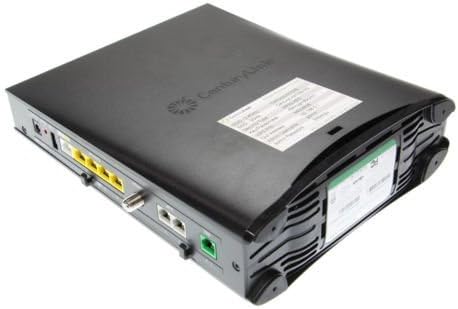
ပုံ ၄.၁: အပေါ်နှင့်နောက်ဘက် View of the C2100T. This image provides an angled view showing the top ventilation and the arrangement of ports on the rear panel.
4. စနစ်ထည့်သွင်းရန် ညွှန်ကြားချက်များ
၃.၂။ ကနဦးချိတ်ဆက်မှု
- ပါဝါချိတ်ဆက်မှု- Connect the provided power adapter to the 12VDC 2A power input on the rear panel and plug it into an electrical outlet. Press the On/Off button. The Power LED on the front panel should illuminate.
- Internet Connection (DSL): If you have DSL service, connect one end of the green telephone cord to the DSL port on the modem router and the other end to your wall's DSL jack. Wait for the DSL 1 (and DSL 2 if applicable) LEDs to become solid, indicating synchronization.
- Internet Connection (Fiber/Ethernet WAN): If you have fiber internet service, connect an Ethernet cable from your Optical Network Terminal (ONT) or fiber modem to the LAN/WAN port on the C2100T.
- Wired Device Connection: For wired devices (e.g., computer, gaming console), connect an Ethernet cable from one of the yellow Ethernet ports (1-4) on the C2100T to the Ethernet port on your device.
4.2. အခြေခံဖွဲ့စည်းမှု
After physical connections are made, you may need to configure the modem router via its web ကြားခံ။
- ဝင်ရောက်ခြင်း။ Web မျက်နှာပြင်- တစ်ခုဖွင့်ပါ။ web browser on a device connected to the C2100T (either wired or via Wi-Fi). In the address bar, type 192.168.0.1 Enter နှိပ်ပါ။
- အကောင့်ဝင်ခြင်းအထောက်အထားများ- You will be prompted for a username and password. The default credentials are often found on a sticker on the device itself. Common defaults are:
- အသုံးပြုသူအမည်- admin
- စကားဝှက်- (Refer to the sticker on your device, e.g., Hadsee7j as shown in Figure 2's detail)
- ကနဦးတပ်ဆင်မှု Wizard- Follow the on-screen instructions of the setup wizard to configure your internet service provider (ISP) settings, Wi-Fi network name (SSID), and password.
Note: Your CenturyLink service may require specific VPI/VCI settings or PPPoE credentials. Consult your CenturyLink documentation or contact their support if you encounter issues during configuration. This device is compatible with CenturyLink VDSL/ADSL2+ services. It is not compatible with all fiber connections or AT&T services.
5. လုပ်ငန်းဆောင်ရွက်မှုညွှန်ကြားချက်များ
5.1. Wi-Fi Network Connection
The C2100T broadcasts two Wi-Fi networks: 2.4GHz and 5GHz. These are typically labeled with distinct SSIDs (e.g., "CenturyLink0204" and "CenturyLink0204-5G").
- Locate Network Name (SSID): On your wireless device (smartphone, laptop, tablet), search for available Wi-Fi networks. The SSIDs are usually printed on a sticker on the modem router.
- Enter Password (Passphrase): Select your desired network (2.4GHz or 5GHz) and enter the Wi-Fi password (passphrase) found on the same sticker.
- ချိတ်ဆက်ပါ Your device should now connect to the Wi-Fi network.
The 2.4GHz band offers wider coverage, while the 5GHz band provides faster speeds over shorter distances and is less prone to interference.
၅.၂။ WPS အသုံးပြုခြင်း (Wi-Fi Protected Setup)
WPS allows for easy connection of WPS-compatible devices without manually entering the Wi-Fi password.
- Press the WPS button on the front panel of the C2100T. The WPS LED will start blinking.
- Within two minutes, activate WPS on your wireless device.
- The device should automatically connect to the Wi-Fi network.
6. ပြုပြင်ထိန်းသိမ်းမှု
- နေရာချထားမှု- Place the modem router in an open, central location to maximize Wi-Fi coverage. Avoid placing it near large metal objects, concrete walls, or other electronic devices that may cause interference.
- လေဝင်လေထွက်- Ensure the device has adequate ventilation. Do not cover the ventilation holes.
- သန့်ရှင်းရေး- ကိရိယာကို ပျော့ပျောင်းခြောက်သော အဝတ်ဖြင့် သန့်ရှင်းပါ။ အရည် သို့မဟုတ် aerosol သန့်စင်ဆေးများကို မသုံးပါနှင့်။
- Firmware အပ်ဒိတ်များ Periodically check the CenturyLink support website for firmware updates. Keeping your firmware updated ensures optimal performance and security.
- ပြန်လည်စတင်နေသည် - If you experience network issues, try restarting the modem router by unplugging the power adapter for 30 seconds and then plugging it back in.
၃
7.1. အင်တာနက်ချိတ်ဆက်မှုမရှိပါ။
- LED များကို စစ်ဆေးပါ- Ensure the Power, DSL (if applicable), and Internet LEDs are solid green. If any are off or blinking, check connections.
- ကေဘယ်လ်ချိတ်ဆက်မှုများ Verify all cables (power, DSL/WAN, Ethernet) are securely connected.
- စက်ပစ္စည်းကို ပြန်လည်စတင်ရန်- Power cycle the modem router by unplugging it for 30 seconds and plugging it back in.
- ISP ဆက်တင်များ- Confirm that your ISP settings (e.g., VPI/VCI, PPPoE username/password) are correctly configured in the web ကြားခံ။
- ဆက်သွယ်ရန် ISP- If issues persist, contact CenturyLink support to verify service status in your area.
7.2. Wi-Fi Not Working or Slow
- Wi-Fi LEDs: Ensure the Wi-Fi 2.4GHz and Wi-Fi 5GHz LEDs are illuminated.
- စကားဝှက်- Double-check that you are entering the correct Wi-Fi password (passphrase).
- အချက်ပြစွမ်းအား- Move closer to the modem router to check if signal strength improves. Obstacles like walls and floors can degrade Wi-Fi performance.
- အနှောင့်အယှက်- Other electronic devices (cordless phones, microwaves) can interfere with Wi-Fi signals. Try changing the Wi-Fi channel in the modem router's web ကြားခံ။
- Dual-Band- Try connecting to the other Wi-Fi band (2.4GHz or 5GHz) to see if performance improves.
၅.၃။ ဝင်ရောက်၍မရပါ Web ဖေ့စ် (၄၁)၊
- ကြိုးတပ်ချိတ်ဆက်မှု- Ensure your device is connected directly to the modem router via an Ethernet cable.
- IP လိပ်စာ- Verify your computer's IP address is in the same subnet as the router (e.g., 192.168.0.x).
- ဘရောက်ဆာ ကက်ရှ်- သင့်အားရှင်းလင်းပါ။ web ဘရောက်ဆာ၏ ကက်ရှ်နှင့် ကွတ်ကီးများ သို့မဟုတ် အခြားဘရောက်ဆာကို စမ်းကြည့်ပါ။
- Firewall/Antivirus- ဝင်ရောက်ခွင့်ကို ပိတ်ဆို့နိုင်သည့် မည်သည့် firewall သို့မဟုတ် antivirus software မဆို ယာယီပိတ်ထားပါ။
- ပြန်လည်စတင်ပါ As a last resort, perform a factory reset by pressing and holding the recessed Reset button for 10-15 seconds with a paperclip. This will erase all custom settings.
8. သတ်မှတ်ချက်များ
| မော်ဒယ်အမည် | C2100T |
| အမှတ်တံဆိပ် | CenturyLink (Manufactured by Technicolor) |
| ကြိုးမဲ့စံ | 802.11ac |
| Frequency Band အတန်း | Dual-Band (2.4GHz နှင့် 5GHz) |
| ချိတ်ဆက်မှုနည်းပညာ | Wi-Fi, Ethernet, DSL, HPNA, USB, VoIP |
| Compatible Services | CenturyLink VDSL/ADSL2+ Services (Not compatible with all fiber connections or AT&T) |
| Ethernet Ports များ | Gigabit Ethernet (4x LAN, 1x LAN/WAN) |
| အထူးအင်္ဂါရပ် | WPS (Wi-Fi ကာကွယ်မှုတည်ဆောက်ပုံ) |
| အတိုင်းအတာ (L x W x H) | 10.6 x 10.6 x 2.6 လက်မ |
| ပစ္စည်းအလေးချိန် | ၁၆.၈၉ ပေါင် |
| ကွန်ပျူတာစက်လည်ပတ်ရေးစနစ်ပရိုဂရမ် | ZyNOS |
| အကြံပြုထားသော အသုံးပြုမှုများ | အိမ် |
9. အာမခံနှင့် ပံ့ပိုးမှု
For warranty information, technical support, or further assistance, please refer to the documentation provided with your purchase or visit the official CenturyLink support webဆိုက်။ ပံ့ပိုးမှုအရင်းအမြစ်များတွင် များသောအားဖြင့် မကြာခဏမေးလေ့ရှိသောမေးခွန်းများ၊ ပြဿနာရှာဖွေဖြေရှင်းခြင်းလမ်းညွှန်များနှင့် ဖောက်သည်ဝန်ဆောင်မှုအတွက် ဆက်သွယ်ရန်အချက်အလက်များ ပါဝင်လေ့ရှိသည်။
It is recommended to register your product with CenturyLink, if applicable, to receive updates and support notifications.